
ComfyTV – Open-Source ComfyUI Plugin, Local Infinite Canvas Media Workbench
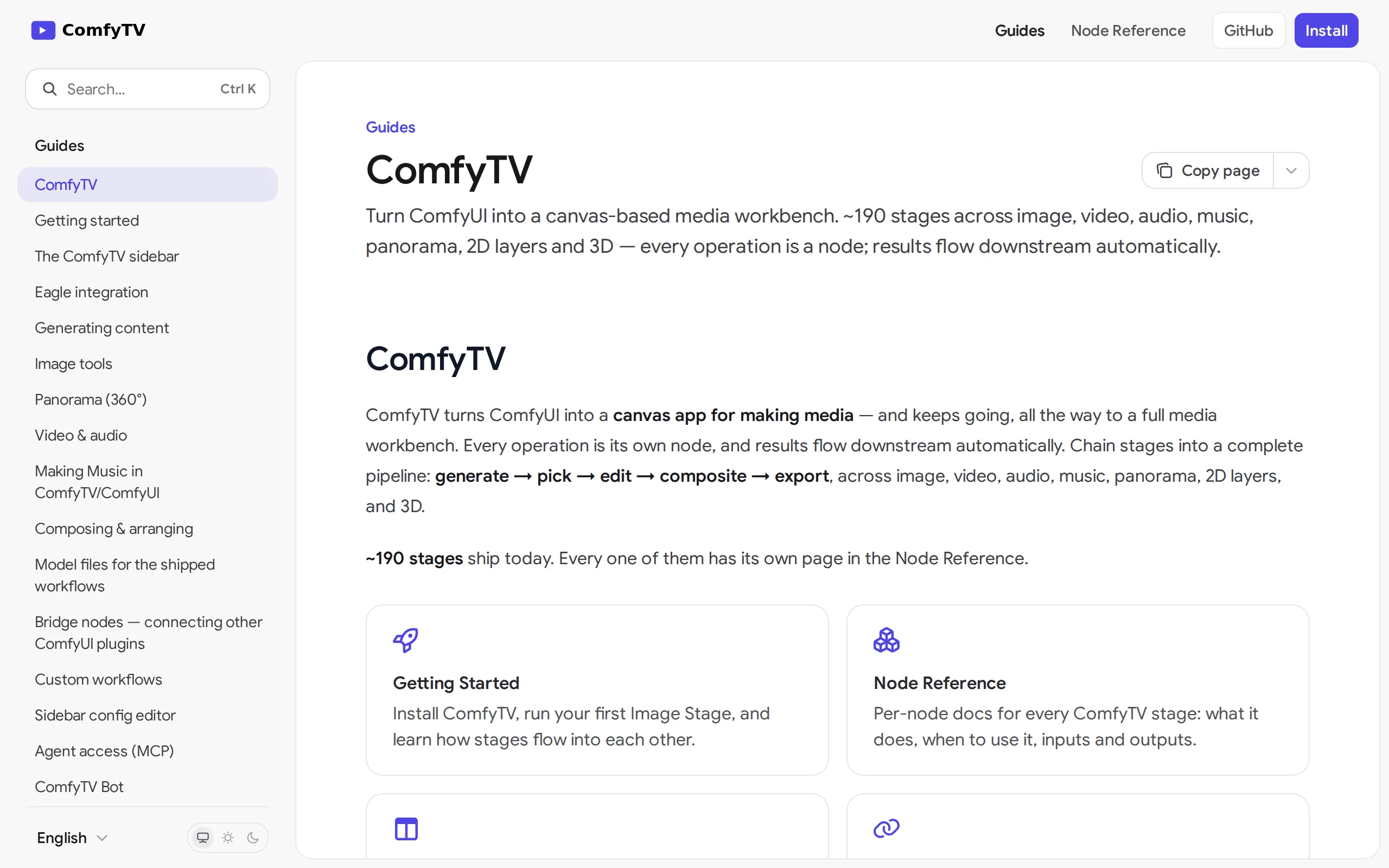
Executive Summary:
ComfyTV is an open-source ComfyUI plugin that operates entirely locally, transforming ComfyUI into an infinite canvas-style media workbench similar to TapNow and LibTV. Each operation on the canvas is...
1. What is ComfyTV
ComfyTV is an open-source ComfyUI plugin that operates entirely locally, transforming ComfyUI into an infinite canvas-style media workbench similar to TapNow and LibTV. Each operation on the canvas is represented as an independent node, and modifying any section only requires rerunning that specific node, without the need to recalculate the entire workflow. With approximately 190 nodes covering image generation, video editing, color grading, chroma keying, audio processing, storyboard creation, and layer editing, ComfyTV also supports Agent integration. Since its generation capabilities rely on locally installed models, ComfyTV is ideal for creators who want to minimize node connections and streamline the process from generation to export.
Technical Positioning and Domain: ComfyTV belongs to the workflow orchestration and post-production layer of the AIGC media production toolchain, positioning itself as the media creation frontend within the ComfyUI ecosystem. It does not implement any generation algorithms itself but instead uses ComfyUI's backend as an execution engine. Through the frontend canvas, it orchestrates multiple stages such as generation, editing, color grading, and audio processing, filling the gap in ComfyUI's native experience for media post-production and forming a complete closed loop from generation to export.
Development Background: The project is open-sourced and maintained by developer jtydhr88 on GitHub, using the GPL-3.0 license. Its design draws from the interaction paradigms of infinite canvas-style creation tools like TapNow and LibTV, aiming to allow ComfyUI users to complete the entire media creation process without switching between generation tools and post-production software. The project is delivered as a custom_nodes plugin, naturally inheriting the vast community ecosystem of ComfyUI.
Core Value: ComfyTV addresses two major pain points of the native ComfyUI workflow in media post-production: first, the cumbersome node connections that require repeatedly transferring data between multiple software applications for a single completed media segment; second, the global queue mechanism that forces a full re-run of the entire chain for any local modification. By encapsulating workflow stages into individual nodes and using snapshot-style data flow, users can rerun only the modified section, with downstream nodes automatically consuming the new results, significantly improving iteration efficiency.
Technical Features: The plugin-based architecture allows ComfyTV to seamlessly integrate with ComfyUI as a custom_nodes plugin. Each node is bound to a ComfyUI workflow stored in JSON format. Snapshot-style data flow supports rerunning nodes individually. The project's database ensures persistent storage of states and history. The Bridge node can connect to any third-party plugin, and the remote runner can incorporate models and computational resources from multiple machines into a single canvas workflow. It includes built-in Bot, 45 tools MCP server, and Agent Skills, enabling AI Agents to directly drive canvas-based creation.
2. Key Features
Node-by-Node Execution: Each operation on the canvas is an independent node. Modifying any section only requires rerunning that specific node, and the results are automatically passed to downstream nodes, eliminating the need for a full-chain recalculation as in ComfyUI's native global queue. The output of each node is saved as a snapshot, and downstream nodes reference the most recent snapshot from upstream nodes, significantly reducing the time cost of local adjustments.
Project-Centric Model: Each project corresponds to one canvas. All outputs are stored within the project, complete with full historical records, and the session is restored from the project's history upon page reload. Assets, intermediate results, and final outputs travel with the project, making it ideal for multi-stage creation, version rollback, and long-term project maintenance.
Workflow Binding: A set of built-in workflows runs on local models, covering common models such as SD1.5 and LTX I2V. It also supports importing existing ComfyUI workflow JSON files and binding input nodes through a graphical interface. Existing workflow assets can be seamlessly migrated into the canvas and connected with media processing nodes.
Built-in Assets and Resource Library: Provides image, video, audio, and 3D model asset libraries, as well as LUTs, fonts, and prompt snippet libraries. Prompts can use the @ syntax to reference resources, integrating asset management directly into the creative process and minimizing interruptions caused by searching for and switching between external files.
End-to-End Media Pipeline: Approximately 190 nodes cover image generation, video editing, color grading, chroma keying, subtitles, audio processing, music, panorama, 2D layer editing, and 3D processing, almost encompassing the entire media production pipeline. Users can complete all tasks from generation to final output without switching between multiple professional software tools.
Storyboard and Director Console: The storyboard workspace works with the Director node to generate videos on a per-shot basis, maintaining consistency across shots through shared reference characters and providing a timeline preview. This feature is tailored for multi-shot narrative creation, such as animated series, short films, and video series, addressing the common issue of character drift in AI-generated content.
Agent Integration: Built-in Bot, 45 tools MCP server, and installable Agent Skills are available alongside the canvas. Agents can autonomously create nodes, run workflows, view images, and iterate on modifications. The open protocol allows external Agent frameworks to directly control the canvas, providing a standard interface for automated content production.
Eagle Archiving: Can connect with the local Eagle application to browse asset libraries and automatically archive each rendering result, complete with full traceability of generation parameters. This feature offers a convenient asset management solution for project-based creators who need to manage large volumes of assets and versions.
3. Application Scenarios
Multi-Camera Anime and Animation Production: Use the storyboard workspace to plan the sequence of shots. The Director node generates video shot by shot, ensuring character consistency across shots by using a shared reference character. After completion, the shots are seamlessly stitched together on the timeline to form a full episode, with the entire process closed-loop within a single canvas, avoiding character drift and post-production stitching challenges.
End-to-End AI Short Film Production: Complete text-to-image generation, image-to-video generation, editing, color grading, subtitle addition, and music export all on the same canvas, eliminating the need to repeatedly import and export between generation tools and editing software. The per-node rerun mechanism allows for updating a specific shot or color grading parameter without reprocessing the entire video.
Fast Iteration for Voice-over and Marketing Materials: Modifying a single line of voice-over script or replacing a visual element only requires rerunning the corresponding node, with downstream elements automatically updating. Ideal for scenarios requiring frequent revisions, such as product promotions and social media videos, significantly shortening iteration cycles and improving content production efficiency.
Local Private Material Processing: All materials, models, and projects remain on the local machine, with no data uploaded. This is suitable for processing internal training videos, client confidential materials, and other privacy-sensitive content. The GPL-3.0 open source license also allows enterprises to perform secondary development and internal customization.
Agent Automated Content Production Line: With built-in Bot and MCP server capabilities, Agent can autonomously set up nodes, generate content in bulk, and visually iterate. After integrating Agent Skill, fixed creative methodologies can be established, automating repetitive content production workflows, making it ideal for large-scale content operations teams.
4. How to Use
Environment Requirements: You need to install ComfyUI locally along with the corresponding version of the Python environment, and prepare an NVIDIA GPU (recommended with 8GB or more VRAM) and the required generation models (such as SD1.5, LTX I2V). It is recommended to use Windows or Linux as the operating system; macOS support should be confirmed with the official documentation.
Install Plugin: Clone the ComfyTV repository into the custom_nodes directory of ComfyUI, then completely restart ComfyUI. After restarting, the nodes will appear under the ComfyTV category in the Add-Node menu. Note that a complete restart is required, not just refreshing the page, otherwise the nodes will not load.
Create Project: Place a Project node on the canvas to set up a project. Each canvas corresponds to one project. All subsequent outputs will be automatically saved within the project and the full history will be recorded, allowing you to restore the scene when reopening the page.
Configure Workflow: In the sidebar, select the desired workflow and local model for each node. You can also import your existing ComfyUI workflow JSON and bind input nodes through the graphical interface. After configuration, the node will display the required input ports.
Generate Content: Drag an Image or Video node onto the canvas, input the prompt, and click the Run button on the node. After the generation is complete, the Picker will automatically pop up, allowing users to select satisfactory results. If multiple candidate parameters are configured, you can generate in bulk and then perform centralized filtering.
Edit and Refine: Use tools such as Inpaint, Crop, and Upscale in the Picker to modify images or videos. Connect color grading and special effects nodes into an FX Chain for a single render. Most effects can be previewed in real-time within the nodes, reducing the waiting time for repeated renders.
Composite and Export: Use Compose-type nodes to concatenate clips and add transitions. For multi-shot projects, use the Director console to generate by shot while maintaining character consistency. Finally, use the export node to output the final composition.
Notes: A complete restart of ComfyUI is required after installation to load the nodes; generation quality depends on the local model and hardware configuration; after registering a remote runner, a capability check will be performed before execution to ensure the node is available; regularly back up project data to avoid losing creative work due to disk failures.
Best Practices: It is recommended to save frequently used workflows and model parameters as templates to reduce repetitive configuration; for long-term projects, regularly review key nodes through the project history to prevent loss of work due to accidental operations; in multi-machine computing scenarios, first confirm node compatibility through the capability check of the remote runner before proceeding with formal rendering.
5. Pros and Cons Analysis
| Pros |
|---|
| Process-level Node Packaging: Each of the approximately 190 nodes represents a complete process. Generation, editing, color grading, chroma keying, subtitles, and audio can be seamlessly chained together in one workflow, eliminating the need to switch between generation and post-production software. The creation pipeline is highly integrated. |
| Free and Open Source, No Subscription: Fully free under the GPL-3.0 license, all data and materials remain local, with no platform commission or membership restrictions. Privacy is at a relatively high level compared to similar tools. |
| Seamless Inheritance of the ComfyUI Ecosystem: Existing workflows and third-party plugins are fully compatible. The Bridge node can connect to any third-party plugin, and the remote runner can integrate models and computational power from multiple machines into a single canvas for scheduling. |
| Native Agent Support: Built-in Bot, 45 tools MCP server, and installable Agent Skills. The open protocol allows external Agent frameworks to directly drive the canvas, providing a foundation for automated content production. |
6. Comparative Analysis with Similar Tools
| Comparison Dimension | ComfyTV | LibTV (LiblibAI) |
|---|---|---|
| Product Positioning | Open-source infinite canvas media workstation running on local ComfyUI | Cloud-based professional video creation platform with commercialization, featuring dual entry points for humans and agents |
| Deployment and Pricing | GPL-3.0 open-source, completely free, runs purely locally | Cloud SaaS, with free quota + membership/points-based pricing |
| Model Sources | Relies entirely on locally installed models, supports importing any custom workflow | Aggregates over 50 models (e.g., Kefu, Seedance, Wan, Kling), ready to use out-of-the-box |
| Node/Skill Ecosystem | Approximately 190 self-developed media nodes, ComfyUI full ecosystem plugins can be integrated via Bridge | Over 100 director-level Skill Hubs, users can build and publish to the square for sharing |
| Agent Integration | Built-in Bot + 45 tool MCP server + installable Agent Skills, open protocol | Agents access capabilities via Skill interfaces, libtv-skills plugin connects to OpenClaw/Claude Code |
| Role Consistency | Director node shares reference roles to ensure consistency across shots | Role consistency across three views + multi-grid storyboard simulation |
| Generation Reliability | No official success rate data, quality depends on local models and configuration | Officially claims that project generation success rate exceeds 80% within 3 minutes |
| Data and Privacy | All materials, models, and projects are local, offering the strongest privacy protection | Materials are uploaded to the cloud, relying on the platform's copyright and compliance commitments |
| Usage Threshold | Requires a dedicated GPU, model installation, and basic workflow knowledge, making it relatively high-threshold | Register and use immediately, no environment setup needed, beginner-friendly |
For advanced creators who are already familiar with local ComfyUI, have a dedicated GPU, and want to integrate generation and post-production workflows, ComfyTV offers incremental value through process-level node encapsulation and node-by-node rerunning, while being completely free and keeping all data local, making it suitable as the primary creative environment.
For creators and teams seeking hassle-free use, multi-model aggregation, and commercial delivery, LibTV's cloud SaaS model eliminates the need for environment configuration and hardware investment, offering ready-to-use capabilities. Its officially published success rate data also reduces delivery risks, though users must accept uploading materials to the cloud and paying subscription fees.
For users requiring deep customization of the underlying generation process, or those using the platform for research or engineering development, the standard ComfyUI remains a more flexible foundational platform. ComfyTV can be viewed as a one-stop media creation interface on top of it, and the two can be used in combination.
7. Editor's Summary
From a technological innovation perspective, ComfyTV's core value lies in expanding ComfyUI from a "generation tool" into a "media creation workstation." The snapshot-based data stream design is a key mechanism — it enables each node to independently save output snapshots, allowing downstream nodes to consume the latest results on demand, thereby circumventing the limitations of global queue-based full-chain recalculations in ComfyUI. Process-level node encapsulation compresses complex multi-software collaboration into a single canvas, with approximately 190 nodes covering the complete workflow from generation to export. This "process-as-node" abstraction approach demonstrates a high degree of differentiation within the ComfyUI plugin ecosystem.
In terms of practical value, ComfyTV is particularly beneficial for two types of users: first, advanced users who have already invested in the local ComfyUI ecosystem and require higher creation efficiency; and second, teams handling privacy-sensitive materials who cannot use cloud platforms. Its GPL-3.0 open-source license and Bridge/remote runner mechanism leave room for enterprise secondary development and computational power expansion. The open design of the MCP server and Agent Skills also provides standard interfaces for agent-driven content production.
Of course, ComfyTV's positioning means it is not a zero-threshold tool. Users need to have basic capabilities in local model deployment. For beginners who are just starting with AI creation, using a cloud platform directly may be a smoother starting point; however, for creators who are already familiar with ComfyUI workflows and wish to further improve their creation efficiency, ComfyTV offers a complete local media creation loop. As the MCP protocol becomes more widespread in the agent ecosystem, ComfyTV has the foundational conditions to support agent-driven visual content production. Its future development will depend on the richness of the community ecosystem and the continuous refinement of media process nodes by developers.
8. FAQ
Q: Is ComfyTV free?
A: Yes. ComfyTV uses the GPL-3.0 open-source license, and is completely free with no subscription fees or platform commissions. All features run locally, with data and assets never leaving the local environment, and there are no feature restrictions or premium paid versions.
Q: What hardware configuration is required for ComfyTV?
A: ComfyTV itself does not execute generation algorithms; hardware requirements depend on the locally installed ComfyUI and generation models. It is recommended to prepare an NVIDIA GPU with at least 8GB of VRAM for smooth operation of mainstream models like SD1.5. Video generation models require higher VRAM. The official project has not published minimum configuration requirements; actual performance depends on the local environment.
Q: Can ComfyTV generate videos directly?
A: Yes. ComfyTV enables video generation by binding to local model workflows, such as the image-to-video model LTX I2V. After users drag in a Video node and input prompts, they can click Run to invoke the local model and generate videos. Results can be previewed and selected in the Picker.
Q: Can existing ComfyUI workflows be imported?
A: Yes. ComfyTV supports importing existing ComfyUI workflow JSON files and binding input nodes through a graphical interface. Once imported, workflows appear as nodes on the canvas and can be connected with other media processing nodes. Existing assets do not need to be rebuilt.
Q: How can an Agent integrate with ComfyTV?
A: ComfyTV provides three Agent integration methods: an inbuilt Bot next to the canvas, the 45 Tools MCP server, and installable Agent Skills. External Agents can invoke canvas capabilities via the MCP protocol, creating nodes autonomously, running workflows, viewing images, and iterating on modifications.
Q: What is the difference between ComfyTV and LibTV?
A: ComfyTV is a local open-source plugin, completely free, with data staying on the local machine. However, it requires your own GPU and models, making it suitable for advanced users familiar with ComfyUI. LibTV is a cloud-based commercial platform that aggregates over 50 models for immediate use, with an officially reported project delivery success rate exceeding 80%. However, materials must be uploaded to the cloud, and it uses a subscription-based pricing model.
9. Project Links
- Product Website: https://comfytv.org/
- GitHub Repository: https://github.com/jtydhr88/ComfyTV
Related
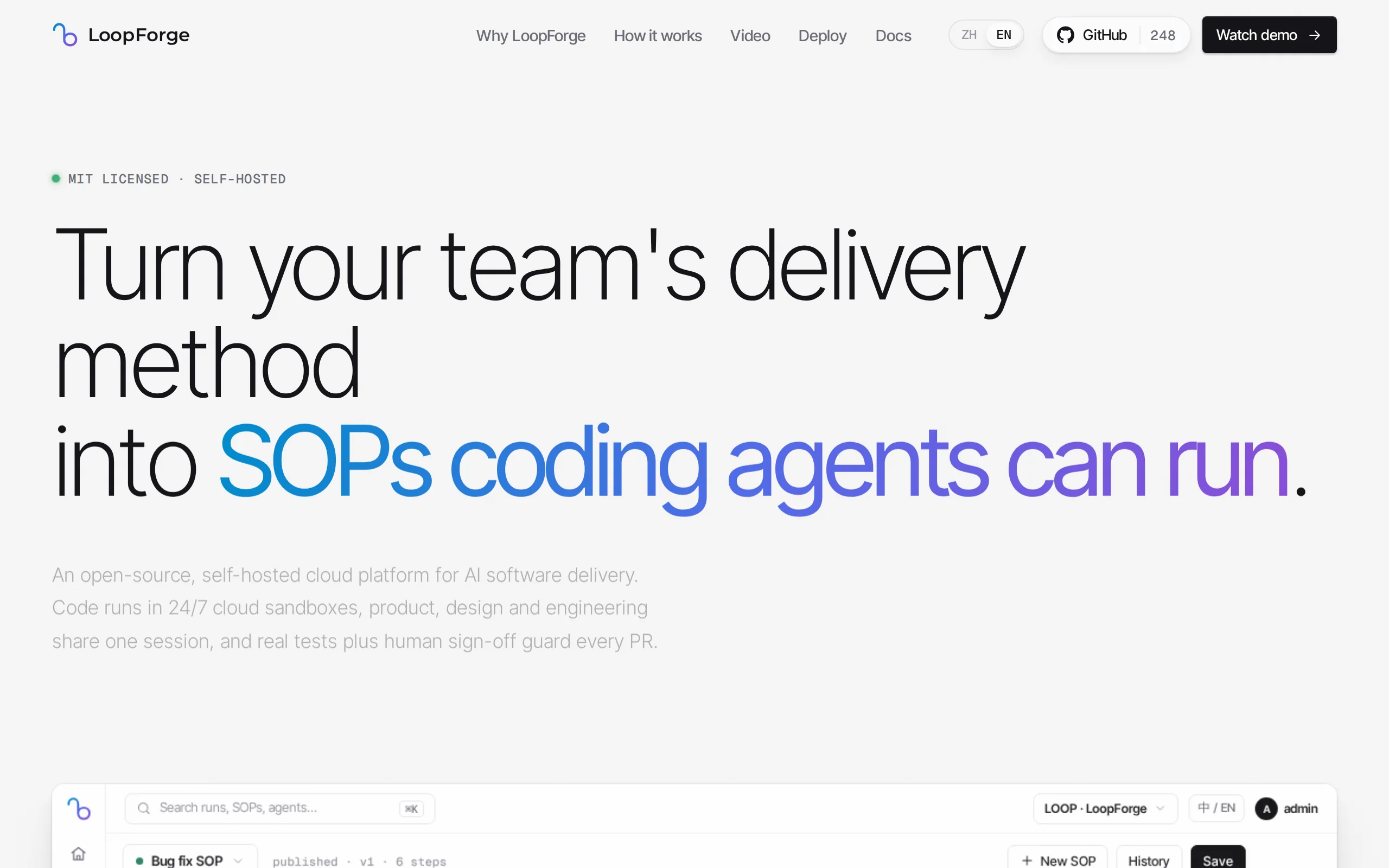
LoopForge – Tencent's Open-Source Cloud-Based AI R&D Collaboration Platform
LoopForge is an open-source, team-level cloud-based AI R&D collaboration platform developed by Tencent, designed to address engineering breakpoints that occur during multi-Agent handover processes. Un...
Muse Ember Review: Meta Redefines the Efficiency Boundaries of Lightweight Models
Muse Ember is Meta's smallest parameter-scale AI model introduced in mid-2026, specifically designed for high-frequency, repetitive tasks in agents. According to official benchmark data, this model ac...
Claude Fable 5.2 – Anthropic's Flagship AI Model
Claude Fable 5.2 is Anthropic's flagship AI model, sharing a common origin with the security-focused Claude Mythos 5.2. This model is renowned for its capability of autonomous collaboration among thou...
Apollo World – Baidu Apollo's Multimodal World Model, Empowering Autonomous Driving Closed-loop Simulation and Data Flywheel
Apollo World is a multimodal world model driven by intelligent agents, introduced by Baidu Apollo for physical AI. Unlike traditional simulation tools, this system constructs virtual cities based on r...
© All Rights Reserved. Some content on this site is partially generated by AI with human review.