
LinPad OS – Open-Source Native Linux Desktop Environment for iPad
Executive Summary:
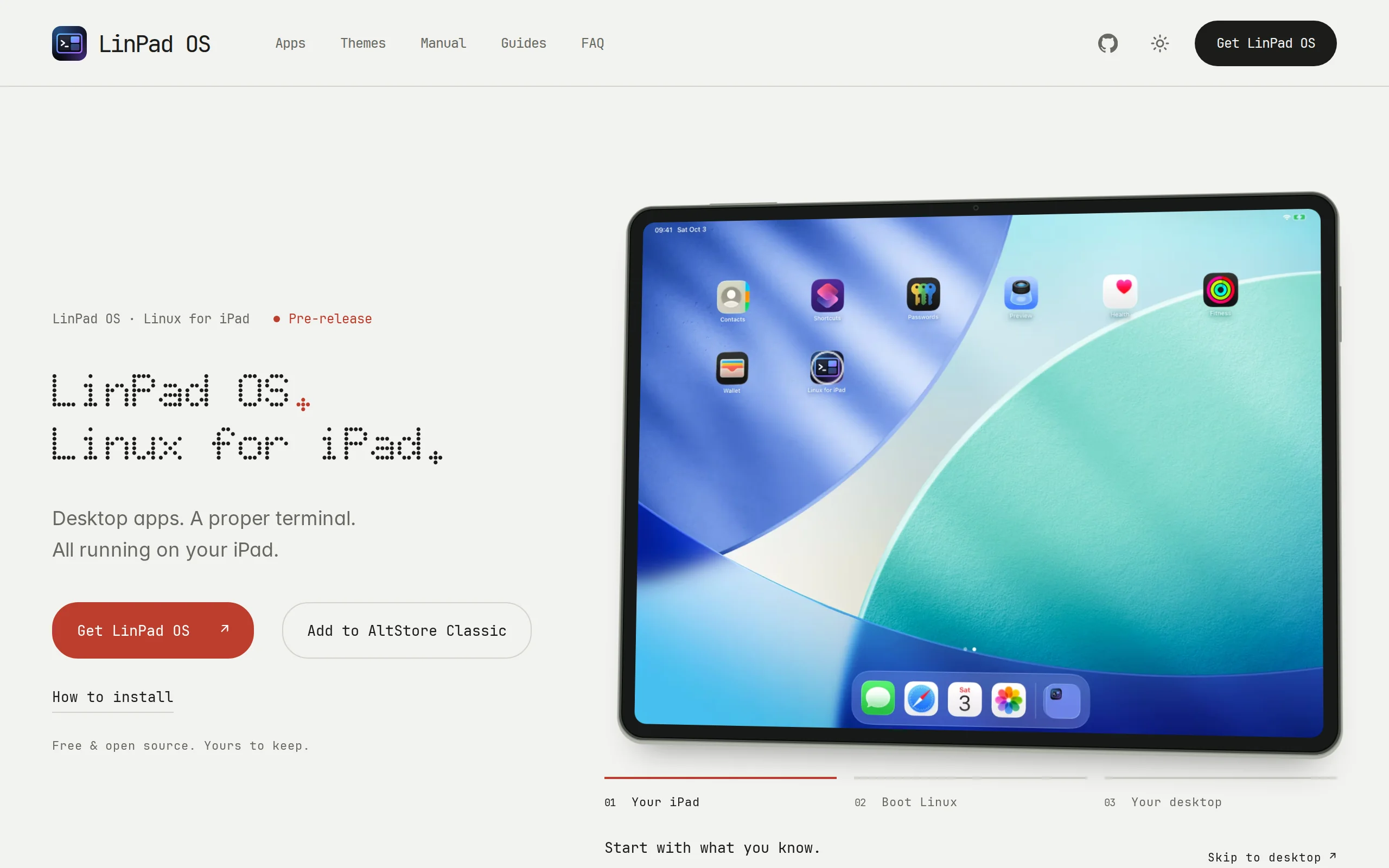
LinPad OS is an open-source application designed for iPad, offering a complete local Alpine Linux environment and graphical desktop interface. This allows users to experience a multi-window Linux oper...
1. What is LinPad OS
LinPad OS is an open-source application designed for iPad, offering a complete local Alpine Linux environment and graphical desktop interface. This allows users to experience a multi-window Linux operating environment on their iPad without the need to jailbreak, root, or connect to a remote computer. Initiated by independent developer fspecii, the project is currently in pre-release and can be sideloaded onto iPads with M1 or newer chips using tools like SideStore and AltStore. It supports mainstream development tools such as VS Code, Python, Node.js, and Git, and can integrate with AI coding assistants like Claude Code to enable a local-to-cloud development workflow.
Technical positioning and domain: This project belongs to the mobile virtualization and development tools domain, specifically manifested by running an ARM64-based Alpine Linux distribution within the iPadOS app sandbox, while providing desktop interaction components such as window management, taskbar, and multiple workspaces. It is positioned as a local Linux development environment tailored for developers.
Development background: The project was created and hosted on GitHub by independent developer fspecii, driven by community demand to use the iPad as a lightweight Linux computer. Due to the closed nature of the iPadOS system, such environments previously relied on remote servers or complex emulation solutions. LinPad OS circumvents App Store restrictions through sideloading, filling the gap for a native Linux desktop environment on the iPad.
Core value: It addresses the lack of a complete local development environment for iPad users in mobile scenarios. It preserves the original iPadOS experience, allowing users to continue using functions like reading and note-taking after exiting the app. At the same time, it provides a graphical multi-window desktop and a full coding, debugging, and preview workflow, enabling the iPad to temporarily handle light development tasks. Its ARM64 JIT acceleration mechanism effectively improves application execution efficiency.
Technical features: Unlike traditional x86 emulation, LinPad OS runs natively on the ARM64 architecture, and with optional JIT "fast mode" and Apple GPU graphics acceleration, it outperforms conventional instruction translation approaches in terms of performance. Additionally, by leveraging its built-in app directory and Alpine software repository, it allows the installation of desktop-level Linux applications such as Firefox, LibreOffice, and GIMP, expanding the software ecosystem of the iPad.
2. Key Features
Local Linux Environment: Run a full Alpine Linux system directly within iPadOS, without needing to replace the operating system, jailbreak, or connect to a remote computer. All system components execute locally, and code and project files can be saved directly on the iPad's storage, independent of cloud resources, ensuring basic development capabilities even when offline.
Graphical Multi-Window Desktop: Offers a Linux desktop interaction experience similar to that of a computer, supporting window movement and resizing, automatic tiling, multiple workspaces, taskbars, and keyboard shortcuts. This design significantly improves multitasking efficiency and is more suitable for complex development scenarios requiring simultaneous use of the terminal, editor, and browser compared to iPadOS's native split-screen mode.
Complete Development Toolchain Support: Built-in support for commonly used programming tools and version control systems such as VS Code, Python, Node.js, and Git. Users can complete the entire project development process—from coding, dependency installation, to running, debugging, and Git commits—directly on the iPad, forming a closed-loop local development workflow.
Command Line and AI Programming Integration: Includes a full Linux terminal environment, allowing users to freely install various command-line tools via the apk package manager. It also supports running AI programming assistants like Claude Code, enabling intelligent auxiliary operations such as project analysis, code generation, and modification. However, a network connection is required when using cloud-based model services.
Live Web Preview: Supports launching a development server locally and directly previewing website effects, eliminating the need to deploy the project to a remote VPS. This feature greatly simplifies the frontend development and debugging process, allowing developers to iterate and modify code on the iPad and instantly view rendering results.
Performance Acceleration Mechanism: Supports configuring JIT (Just-In-Time) "Fast Mode," significantly improving the runtime speed of development tools and applications. The project also builds a graphics acceleration pathway to leverage Apple GPU resources, while enhancing support for keyboard, trackpad, and touch operations to fully utilize the iPad's hardware performance.
Access to Linux Software Ecosystem: Through the Alpine software repository and built-in application directory, users can install desktop-level Linux applications such as Firefox, LibreOffice, GIMP, Inkscape, and VLC. This capability expands LinPad OS from a pure development tool into a comprehensive productivity platform capable of handling documents, images, and multimedia content.
iPadOS Experience Preservation: LinPad OS runs as a regular application and does not replace or modify the underlying iPadOS system. After exiting, users can continue to use the iPad's reading, note-taking, and web browsing functions normally. This non-intrusive design reduces usage risks and allows users to freely switch between the two system experiences.
3. How to Use
Verify Devices and Materials: To use LinPad OS, you need an iPad equipped with an M1 or newer chip and running iPadOS 17 or later, along with an Apple ID, a computer, a USB cable, a Wi-Fi network, and several gigabytes of available storage space. This tool currently only supports devices with M1 or newer chips; older iPads cannot run it.
Install Auxiliary Tools: First, install the LocalDevVPN app on your iPad for subsequent network connection verification. On your computer, install the iloader tool. If using a Windows computer, you must first install iTunes from the Apple website to complete device driver and communication support.
Install SideStore: Connect your iPad to your computer using a USB cable and trust the computer. Log in to your Apple ID in iloader, select the target iPad, and proceed to install the SideStore app and its required paired files. This process requires Apple ID authorization for code signing.
Complete System Authorization: In the iPad's "Settings — General — VPN & Device Management," trust the developer certificate. Then, enable developer mode in "Privacy & Security" and restart the device. This step is a necessary prerequisite for the proper operation of sideloaded applications.
Log in to SideStore: Ensure that LocalDevVPN is connected, open SideStore, and log in using the same Apple ID as in iloader. SideStore will become the core entry point for installing and managing LinPad OS.
Install LinPad OS: Click "Add to SideStore" on the LinPad official website to add the official software source, then browse and download LinPad from SideStore. A stable network connection is required during the installation process.
Complete Initial Setup: Keep LinPad in the foreground and wait for the Linux system files to decompress. Then, follow the initialization wizard to sequentially select layout, theme, wallpaper, and pre-installed software packages. The duration of this process depends on your network speed and device performance.
Enable Quick Mode as Needed: If you feel the application is running slowly, you can further configure tools like StikDebug to enable JIT functionality, thereby improving the execution speed of Linux applications. This mode is suitable for running resource-intensive development tools.
Start Development and Preview: Once in the desktop environment, you can open applications such as Terminal, VS Code, and File Manager to write code locally, run a development server, and preview your project in real time. The entire workflow is completed locally on the iPad.
4. Pros and Cons Analysis
| Pros |
|---|
| Preserves native system experience: Runs as a regular app without replacing the underlying iPadOS system. After exiting, users can still use functions like reading, note-taking, and entertainment normally, reducing usage risks and switching costs. |
| True desktop-level interaction: Provides desktop interaction capabilities such as window moving and resizing, automatic tiling, multiple workspaces, taskbars, and keyboard shortcuts. The multitasking experience is better than the native split-screen mode of iPadOS. |
| Complete local development workflow: Supports tools like VS Code, terminal, Python, Node.js, and Git, enabling a full project workflow including coding, debugging, previewing, and version management without relying on remote servers. |
| Performance acceleration mechanisms: Supports ARM64 JIT fast mode and Apple GPU graphics acceleration, offering significant performance advantages over pure x86 emulation in terms of code execution efficiency and graphics processing. |
| Rich software ecosystem: Through the Alpine software repository and built-in app directory, users can install numerous Linux desktop applications such as Firefox, LibreOffice, and GIMP, expanding the productivity capabilities of the iPad. |
5. Comparative Analysis with Similar Tools
| Comparison Dimension | LinPad OS | iSH Shell | UTM |
|---|---|---|---|
| Product Positioning | Native Linux desktop and development environment for iPad | Native Linux command-line environment for iPhone and iPad | General-purpose virtual machine that can run multiple operating systems |
| System Architecture | Runs ARM64 Alpine Linux, providing ARM64 JIT acceleration | Runs Alpine Linux via x86 instruction emulation | Full virtualization solution based on QEMU |
| User Interface | Graphical desktop, multi-window, auto-tile, multiple workspaces, and taskbar | Primarily terminal and command-line based | Full virtual machine graphical interface |
| Graphical Applications | Can run Linux graphical applications such as Firefox, VS Code, and VLC | More suitable for command-line tools like Vim, Git, SSH, and Python | Can run full desktop systems, with graphical performance dependent on virtualization overhead |
| Performance Path | Native ARM64 execution, supports JIT fast mode and Apple GPU acceleration | Higher overhead from x86 instruction emulation, better suited for lightweight command-line tasks | Full virtualization has higher latency and performance overhead |
| Development Experience | Can complete the full workflow of coding, terminal operations, web preview, and Git management | Suitable for script writing, file processing, and remote server operations | Supports multiple operating systems, offering strong flexibility but complex configuration |
| Installation Method | Sideloaded via SideStore, AltStore, or similar methods | Can be directly installed via App Store, with lower barriers to entry | Installed via App Store or sideloading |
| Device Requirements | Only supports iPad with M1 or newer chips | Supports both iPhone and iPad, with broader device coverage | Supports iPhone and iPad, but performance varies significantly |
| Maturity | Still in pre-release stage, compatibility needs to be tested | Has been developed for a longer time, with relatively mature terminal use cases | Long development period, feature-rich but performance limited |
Selection Recommendations: For developers who want to use their iPad as a lightweight Linux computer and require a graphical desktop along with a complete development toolchain, LinPad OS is currently the most targeted option. Its native ARM64 architecture and JIT acceleration mechanism offer clear performance advantages, though users must accept the complexity of sideloading and potential stability risks during the pre-release phase. If users only need a simple, easy-to-install portable Linux terminal or are using an older iPad device, iSH Shell is a more practical choice, as its App Store installation method and wide device compatibility reduce the usage barrier. For tech enthusiasts who need to run multiple operating systems, UTM provides more flexible virtualization capabilities, but it also comes with higher performance overhead and configuration complexity, making it more suitable for users with in-depth system knowledge.
6. Editor's Summary
LinPad OS has made an innovative and thought-provoking attempt in the field of mobile development tools. Its ARM64 native architecture runtime solution offers a distinct technical approach compared to iSH Shell's x86 emulation route. Combined with JIT fast mode and Apple GPU graphics acceleration, it theoretically provides execution efficiency closer to native performance, which holds significant practical value for running real development toolchains on the iPad. In terms of practical utility, LinPad OS fills the gap in local graphical Linux environments on the iPad. The combination of multi-window desktop support, a complete development toolchain, and real-time web previews effectively addresses the lightweight development needs of developers in mobile scenarios. Particularly notable is its non-intrusive design that preserves the native iPadOS experience, achieving a good balance between risk control and user experience.
The project is still in the pre-release phase, and application compatibility and system stability require extensive real-world testing by the community. The complexity of the installation process also presents a high barrier for average users. However, considering that the project is fully open source, relies on the GitHub community collaboration model, and leverages the lightweight and efficient nature of Alpine Linux, its potential for growth is worth noting. For developers and tech enthusiasts who wish to try a real Linux desktop environment on the iPad, LinPad OS currently offers one of the few viable options. As future versions continue to iterate and improve, it has the potential to become an important member of the local development tool ecosystem on mobile devices.
7. Application Scenarios
Mobile Web Development: Developers can use VS Code, Node.js, and Git tools to modify website code in a café or while traveling, launch a development server locally to preview changes in real time, and submit and push code via Git once verified. This scenario fully leverages LinPad OS's local development loop capabilities, allowing for daily maintenance and iteration of front-end projects without the need to carry a laptop.
AI-Assisted Programming: Run AI coding assistants like Claude Code through the built-in terminal to analyze project code, generate new features, or modify existing implementations. Developers can complete an intelligent development workflow—from requirement description to code generation and runtime verification—directly on the iPad. However, a stable internet connection is required when using cloud-based model services.
Linux Learning and Practice: Learners can use a real Linux terminal and apk package repository to systematically practice skills such as command-line operations, Python script writing, Git version control, file permission settings, and development environment configuration. Compared to emulators or online tutorials, LinPad OS provides a real Alpine Linux environment, offering a learning experience that closely mirrors actual work scenarios.
Lightweight Office and Content Processing: Run LibreOffice as needed to handle documents, GIMP to edit images, Inkscape to create vector graphics, and Firefox to browse web resources, temporarily transforming the iPad into a lightweight office device. This is especially suitable for scenarios requiring simple document processing or content organization while on the move.
Portable Emergency Development Tool: When the primary computer is not available, LinPad OS can be used to quickly modify scripts, check the status of Git repositories, connect to remote servers to execute commands, or verify small project prototypes. This emergency capability provides essential technical support for developers who frequently work remotely.
8. FAQ
Q: Which iPad models does LinPad OS support?
A: Currently, only iPads equipped with M1 or newer chips are supported, including the iPad Pro (M1 and later versions) and iPad Air (M1 and later versions). The device must be running iPadOS 17 or a higher version. Older iPads with A-series chips are temporarily not supported due to architectural differences.
Q: Is jailbreaking required to install LinPad OS?
A: No jailbreaking is required. LinPad OS is installed via sideloading tools such as SideStore and AltStore, using Apple's developer certificate mechanism for app signing, and deployed with LocalDevVPN and iloader. Users simply need to trust the developer certificate and enable developer mode in "Settings — General — VPN & Device Management" following the official guide.
Q: Will using LinPad OS affect the original data and functions of the iPad?
A: No. LinPad OS runs as a regular app within the iPadOS app sandbox, without modifying system-level files or the boot process. All original iPad functions can be used normally after exiting the app. The Linux file system required for its operation is stored within the app's own sandbox space and does not occupy the system partition or interfere with other apps.
Q: What should I do if the sideloaded app certificate expires?
A: LinPad OS installed via SideStore is subject to the validity period of Apple's developer certificate. Once the certificate expires, the app will no longer launch. Users need to reconnect to SideStore and log in with the same Apple ID to renew the certificate. It is recommended to handle this in advance before the certificate is about to expire to avoid disrupting development work.
Q: Can LinPad OS replace a laptop as the primary development environment?
A: It is not recommended to use LinPad OS as the sole primary development environment. It is more suitable for lightweight development tasks, emergency scenarios, and Linux learning purposes. Due to the limitations of iPad hardware performance, sideloading maintenance costs, and the stability of the pre-release phase, complex compilation tasks and large-scale project development are still advised to be carried out on traditional computers.
Q: How can I install more Linux software in LinPad OS?
A: You can install software in LinPad OS using Alpine Linux's apk package manager within the terminal, for example, by executing apk add firefox to install the Firefox browser. Additionally, the built-in app directory provides quick installation access to commonly used software, which can be installed via the graphical interface by clicking, without the need to manually enter commands.
9. Project Links
- Product Website: https://linpados.com/
- GitHub Repository: https://github.com/fspecii/LinPad
Related
StarFire X2.6: iFLYTEK's End-to-End Native Audio Modeling Architecture and Domestic Breakthrough in Industrial Deployment
StarFire X2.6 (Spark-X2.6) is an end-to-end native audio modeling architecture launched by iFLYTEK, completing the full training-to-inference loop using entirely domestic computing power. It represent...
MiniMax M3.1 Flash – The Latest Flash Series Model from MiniMax
MiniMax M3.1 Flash is the new generation of the Flash series model launched by MiniMax in 2026. It made its debut under the anonymous name "Space Bunny" across major evaluation benchmarks, with a trai...

YoVoice – Open-Source Local Audio Creation Tool Covering the Full Workflow from Text-to-Speech to Music Composition
YoVoice is an open-source local audio creation tool designed for macOS and Windows platforms, developed by leemysw. It provides users with a complete creation workflow, ranging from text-to-speech (TT...
Gemini 4 Argon Review: Engineering Practices of Google DeepMind's Million-Token Long-Range Reasoning Large Model
Gemini 4 Argon is a new generation of frontier large model launched by Google DeepMind, with a core positioning as an enterprise-level AI system capable of handling complex, long-term workflows. It is...
© All Rights Reserved. Some content on this site is partially generated by AI with human review.